With NVIDIA Reflex or AMD Anti-Lag 2 on, leave Maximum FPS In Game at 0, and close overlays you don't use.
Home · Games · CS2
The Best CS2 Pro settings for PC: Q4 2026
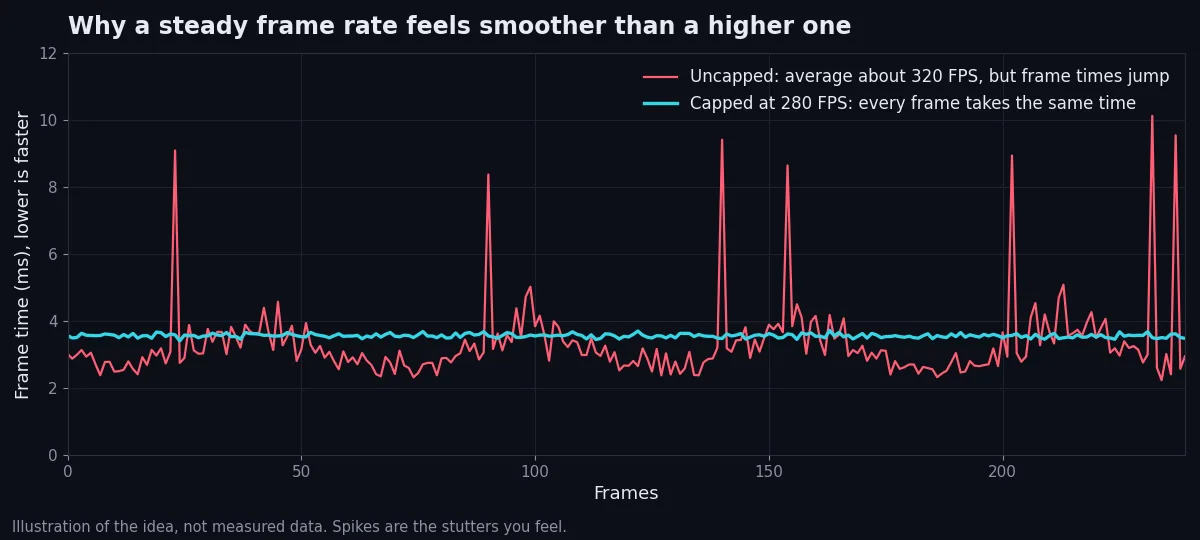
The best CS2 settings for FPS are low shader, particle and texture detail, ambient occlusion off, V-Sync off and NVIDIA Reflex on. Shadows stay on, with Dynamic Shadows on All: medium or high, or Low on a low-end PC. Play fullscreen at your monitor's highest refresh rate and fix stutter first: in CS2, steady frames beat a higher average. These are the CS2 pro settings for that setup. No player is named.
Boost my performanceLatest CS2 update: 5 October 2026. No video settings have changed since the Rush Hour update (22 September). Settings last checked: 11 October 2026. Steam's video settings page was re-opened that day.
The five biggest CS2 FPS boosts
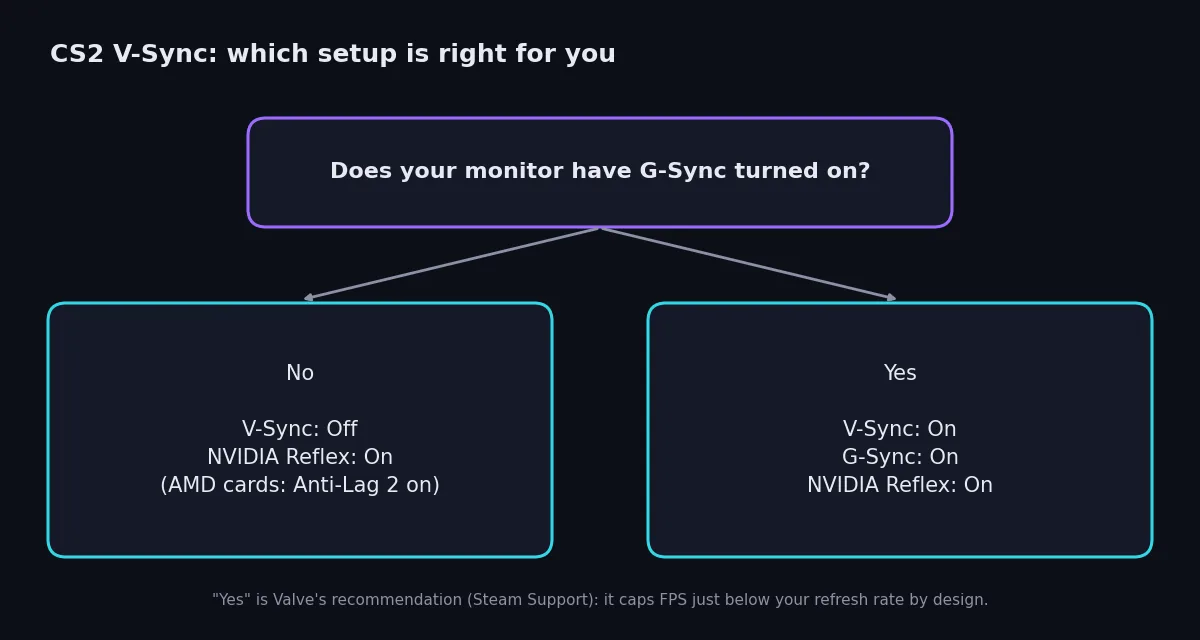
V-Sync off, NVIDIA Reflex or AMD Anti-Lag 2 on. G-Sync owners: see the chart below.
Shader Detail, Particle Detail and Ambient Occlusion to Low or Disabled.
Windows on Best performance, with CS2 on your graphics card.
Your monitor's highest refresh rate, in Windows and in CS2.
CS2 stuttering and FPS drops: how to fix these first
The separate stuttering-fix page is not live by 16 October. This section has no link until then.
Shaders rebuilding
After a CS2 update or new graphics driver, the first minutes on a map can hitch. Play a few rounds before judging.
FPS that swings
With NVIDIA Reflex or AMD Anti-Lag 2 on, leave Maximum FPS In Game at 0 (fps_max 0). Cap just below your lowest FPS in a busy fight only if both are off. If G-Sync is on, use the rule under the video table instead.
Recording and overlays
On Windows 11, turn off Settings > Gaming > Captures > Record what happened, and close overlays you don't use.
Memory below its rated speed
CS2 leans on the processor and memory. Memory left below its rated speed costs frames and 1% lows.
Your connection
If FPS is steady but play feels choppy, set Show Ping and Show Packet Loss / Misdelivery to Always in Settings > Game > Telemetry.
Best CS2 video settings
Path: Settings > Video > Advanced Video. Competitive gives the most FPS and the clearest view of players. Quality suits PCs that already hold their refresh rate. FPS impact is a rough guide from published settings guides, not a number from our own PCs.
| Setting | Competitive | Quality | FPS impact | Why |
|---|---|---|---|---|
| Display mode | Fullscreen | Fullscreen | Medium | Lowest input lag |
| Resolution | Native, or 1280 × 960 (4:3, stretched) | Native | High | Fewer pixels, more FPS. Stretched 4:3 widens player models and narrows the view |
| Refresh rate | Monitor's highest | Monitor's highest | None | Valve's first recommendation. If Windows or CS2 is left at 60 Hz, a 144 Hz or 240 Hz monitor only shows a fraction of your frames |
| Boost Player Contrast | Enabled | Enabled | Small | Players stand out |
| Wait for Vertical Sync | Disabled | Disabled | Medium | Adds input lag on its own |
| Multisampling Anti-Aliasing | CMAA2 or 4x MSAA | 4x or 8x MSAA | Small to medium | Distant players easier to see |
| Global Shadow Quality | Medium or High, or Low with Dynamic Shadows on All | High | Medium | Low can hide shadows, for example on Nuke |
| Dynamic Shadows | All | All | Medium | "Sun Only" hides lamp-lit shadows |
| Model / Texture Detail | Low or Medium | High | Very small | Looks only |
| Texture Filtering | Bilinear or Anisotropic 4x | Anisotropic 16x | Small | Sharper distant surfaces |
| Shader Detail | Low | High | Small | Effects only |
| Particle Detail | Low | High | Small to medium | See through explosions |
| Ambient Occlusion | Disabled | Medium | Large | Costly, no gameplay value |
| High Dynamic Range | Quality | Quality | Very small | Performance looks grainy |
| FidelityFX Super Resolution | Disabled (Highest Quality) | Disabled | Raises FPS when on | Blurs; may add input lag |
| NVIDIA Reflex Low Latency | Enabled (+ Boost for lowest latency) | Enabled | Very small | Cuts input lag |
| AMD Anti-Lag 2 | Enabled (default) | Enabled | Very small | Built into CS2 with Valve |
| Maximum FPS In Game | 0 with Reflex or Anti-Lag 2; else just below your lowest FPS | Same | Steadier frames | Steady beats high |
Screenshot still to capture: CS2 Advanced Video with the Competitive values applied. Best CS2 settings in the Advanced Video menu: Boost Player Contrast enabled, Dynamic Shadows on All, NVIDIA Reflex enabled.
Valve recommends V-Sync, G-Sync and Reflex all on when G-Sync is on: FPS is capped just below your refresh rate, and Valve calls it "usually the smoothest-looking and lowest input latency settings combination". FreeSync owners: turn it on in AMD Software. Restart CS2 after either change.
Screenshot still to capture: the same lamp-lit corner, Dynamic Shadows on All versus Sun Only, with a bot just out of view.
Best CS2 Settings by PC
Aim to hold the monitor's refresh rate. Shader, Particle and Ambient Occlusion stay Low or Disabled on every PC.
| Setting | Low-end (GTX 1650, RX 6500 XT) | Mid-range (RTX 3060, RX 6700 XT) | High-end (RTX 4070, RX 7800 XT and up) |
|---|---|---|---|
| Resolution | 1280 × 960 | Native 1080p | 1080p or 1440p |
| Anti-aliasing | CMAA2 | CMAA2 or 4x MSAA | 4x or 8x MSAA |
| Shadows | Low, Dynamic on All | Medium or High | High |
| Texture Detail | Low | Low or Medium | Medium or High |
| FSR | Ultra Quality if far below refresh rate | Disabled | Disabled |
| Reflex / Anti-Lag 2 | Enabled | Enabled | Enabled (+ Boost) |
Still short of your refresh rate? CS2 leans on the processor, so the Windows section below matters most.
The usual competitive setup is low shader and effect detail, shadows on medium or high with Dynamic Shadows on All, Boost Player Contrast on, 4x MSAA or CMAA2 and V-Sync off, often at 1280 × 960 stretched on a high-refresh monitor. That is the Competitive column. No player is named.
CS2 launch options
In Steam: Counter-Strike 2 > Properties > General > Launch Options. No launch option boosts FPS in CS2. The launch-options page is not live by 16 October, so there is no link here yet.
+fps_max 0
-novid, -high and -threads are CS:GO leftovers. Avoid -allow_third_party_software unless a tool needs it: Valve says your Trust Factor "may be negatively affected" outside Trusted Mode.
CS2 FPS boost: Windows and graphics driver settings
If you want to know how to increase FPS in CS2 beyond the video settings, this is the CS2 optimization most players skip. Full Windows steps are in the gaming guide. That page is not live by 16 October, so this line stays as text until then.
Best Windows Settings for CS2
- Power mode: Settings > System > Power & battery > Power mode > Best performance.
- Graphics card: Settings > System > Display > Graphics, add cs2.exe (in Counter-Strike Global Offensive\game\bin\win64), choose High performance.
- Refresh rate: Settings > System > Display > Advanced display, highest value. If Windows or CS2 is left at 60 Hz, a 144 Hz or 240 Hz monitor only shows a fraction of your frames.
- Game Mode: on (the default), in Settings > Gaming.
Screenshot still to capture: Windows 11 graphics settings with cs2.exe on High performance.
Best NVIDIA Control Panel Settings for CS2
Control Panel > Manage 3D settings > Program Settings, or NVIDIA App > Graphics > Program Settings, then add cs2.exe.
| Setting | Value | Why |
|---|---|---|
| Power management mode | Prefer maximum performance | Lower latency when CPU-bound |
| Low Latency Mode | Off | Reflex in CS2 does it better |
| Vertical sync | Off (On with G-Sync) | As in game |
| Texture filtering - Quality | High performance | Small FPS gain |
| Shader Cache Size | Driver Default | Fewer hitches |
Screenshot still to capture: NVIDIA Program Settings for Counter-Strike 2 with Prefer maximum performance.
AMD Software: Adrenalin Edition
Gaming > Games > Counter-Strike 2: Radeon Anti-Lag at its default (Disabled; use CS2's Anti-Lag 2 instead), Radeon Chill off, Radeon Boost off, Wait for Vertical Refresh off, FreeSync on if your monitor has it.
Screenshot still to capture: AMD Software CS2 profile with Radeon Chill and Radeon Boost off. Needs an AMD card.
Let Hypertune do it
The settings above are free. Hypertune does the parts most players skip: CPU and GPU overclocking, faster memory settings, network tuning, Windows features and Game Hub profiles, applying only what you turn on. It stress-tests every overclock and skips it if your cooling can't hold it, creates a restore point, and reverts in one click.
Screenshot from Austin, still to add: the current Hypertune app or Game Hub screen.
What Hypertune doesn't do
It doesn't touch CS2's files
It doesn't change your CS2 settings or binds
It doesn't fix server lag
Up to 60% higher FPS; results vary by hardware and game. See how Hypertune works
Is Hypertune safe with Valve Anti-Cheat?
CS2 uses Valve Anti-Cheat (VAC). Hypertune works at the system and hardware level and doesn't modify game code or game folders. The safety page is not live on hypertune.gg yet. The review copy is at hypertune-trust-page.pages.dev.
CS2 Pro Settings and FPS FAQ
Why is my CS2 FPS so low?
CS2 low FPS usually means the game is on built-in graphics, V-Sync is on, shader or ambient occlusion settings are high, Windows is in power-saving mode, or your RAM runs below its rated speed. An older processor can also hold CS2 back.
What are the best commands to boost FPS in CS2?
fps_max sets the frame cap (0 for none) and cl_hud_telemetry_frametime_show 2 shows FPS. Turn on Settings > Game > Enable Developer Console (~) first. The video settings above make a bigger difference.
Why does CS2 stutter or feel choppy even with high FPS?
Uneven frame times, not a low average. Turn on Reflex or Anti-Lag 2 and leave Maximum FPS In Game at 0. Cap only if both are off. Then check your refresh rate and packet loss.
Do launch options increase FPS in CS2?
No. The ones that still work only change how CS2 starts.
What are the best CS2 pro settings?
The usual competitive setup is low shader and effect detail, shadows on medium or high with Dynamic Shadows on All, Boost Player Contrast on, 4x MSAA or CMAA2, and V-Sync off, often at 1280 × 960 stretched on a high-refresh monitor. No player is named.
What are the best CS2 settings for a low-end PC?
On a low-end PC (GTX 1650 or RX 6500 XT), use 1280 × 960 or 1600 × 900, CMAA2, Global Shadow Quality on Low with Dynamic Shadows on All, Model / Texture Detail on Low, and Reflex or Anti-Lag 2 on. Turn FidelityFX Super Resolution to Ultra Quality only if you are well below your monitor's refresh rate.
What are the best CS2 settings for FPS and visibility?
For FPS and visibility, keep shader, particle and texture detail low, ambient occlusion off, and V-Sync off, with NVIDIA Reflex on. Leave shadows on, Dynamic Shadows on All, and Boost Player Contrast enabled. Play fullscreen at the monitor's highest refresh rate.
More games
Not live by 16 October. Kamil adds the link when that page exists.
Placeholders until those pages exist.
Not linked. They were only in the brief.